
Users, permissions and keys
Username:     Xy12AbCd.deploy
Access:       Upload only
Home folder:  /inbox
Sign-in:      1 key
Status:       Expires 30 Nov
Each SFTP user is a login for one customer, contractor, server or CI job. They're managed on the SFTP page of the dashboard, and are separate from your dashboard users: they can't log into the dashboard and don't use a seat.
Usernames
An SFTP username is your organisation's account ID, a dot, and the name you give the user:
Xy12AbCd.deploy
Xy12AbCd.customer-bigcorp
The account ID is the same one that appears in your RepoForge.io repository URLs, and it's shown on the SFTP page as Xy12AbCd.<name> next to the host and port. It makes every username unique, so two organisations can both have a user called deploy.
Names are up to 32 characters: lower case letters, numbers, - and _, starting with a letter or number. A user's name can't be changed after they're created.
Permissions
Every user has one of three access levels, which apply inside their home folder:
| Upload and download | Download only | Upload only | |
|---|---|---|---|
| List folders | Yes | Yes | No |
| Download files | Yes | Yes | No |
| Upload files, and overwrite existing ones | Yes | No | Yes |
| Create folders | Yes | No | Yes |
| Delete files and empty folders | Yes | No | No |
| Rename and move files | Yes | No | No |
Upload-only users can't see what's in their folder, including files they've uploaded themselves. This is useful when several customers send files to the same place and shouldn't see each other's.
Folders can't be renamed, and symbolic links aren't supported.
Home folders
A user's home folder is where they start, and they can't go above it: to them, it's /. A user with the home folder / sees every file in the organisation. For example:
| User | Home folder | Sees |
|---|---|---|
Xy12AbCd.admin | / | Everything |
Xy12AbCd.customer-bigcorp | /customers/bigcorp | Only /customers/bigcorp and below |
Xy12AbCd.deploy | /inbox | Only /inbox and below |
Several users can share a home folder. Paths in the activity log are always from the organisation's root, so you can tell where a file went whatever the user's home folder was.
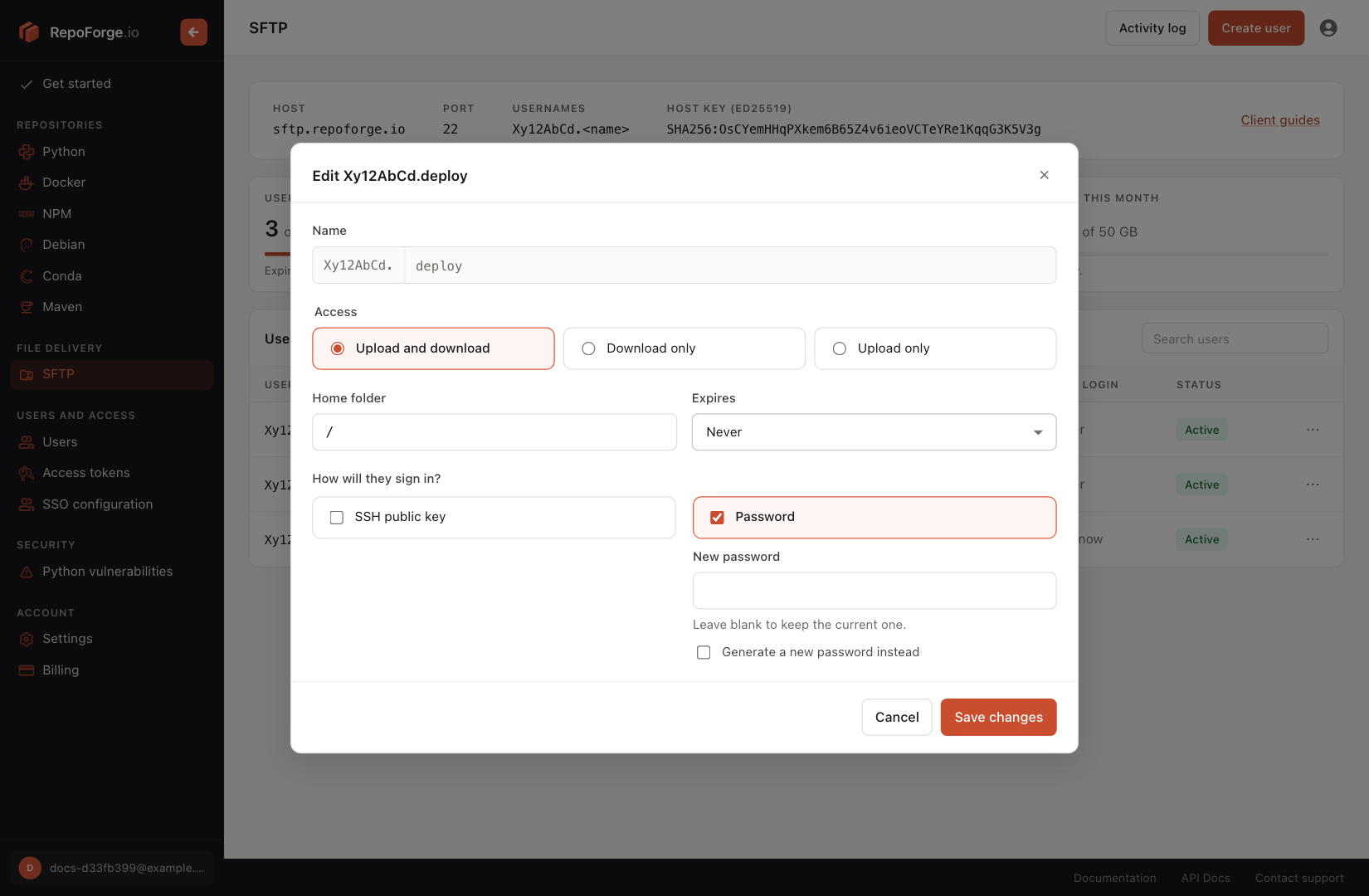
You can change a user's access and home folder at any time from Edit in the ⋯ menu next to them. The change applies the next time they connect.
Keys
Users can have any number of SSH public keys, for example one for each machine or person that uses the login. Keys must be ed25519 or RSA, in OpenSSH format (ssh-ed25519 AAAA… or ssh-rsa AAAA…). Add or remove them from Edit; each key is listed with its SHA256 fingerprint and comment, so you can tell them apart.
To check which key a fingerprint belongs to, run this on the machine that has it:
ssh-keygen -lf ~/.ssh/repoforge_sftp.pubPasswords
A password can be one you choose, at least 12 characters long, or one generated for you. A generated password is shown once, when you save, and can't be shown again. To replace a password, enter a new one (or leave it blank to generate one) under Edit. You can also remove a user's password if they have a key.
A user always needs at least one way to sign in, so you can't remove their last key if they have no password, or their password if they have no keys.
If a user has both keys and a password, they need both to log in: one of their keys, then the password. Use this when you want a second factor; otherwise give them one or the other.
Expiry dates
An expiry date gives a user time-limited access, such as for a contractor or a one-off delivery. When creating or editing a user, choose Never, In 30 days or On a date…. After that date the user can no longer log in, shows as Expired, and no longer counts towards your bill. Their keys, files and activity are kept, so you can extend access by setting a new date.
Deleting users
To delete a user, choose Delete from the ⋯ menu next to them. Deleting a user removes their login and keys. Files are stored per organisation rather than per user, so whatever they uploaded stays where it is. Delete the files themselves with an SFTP client if you no longer need them.