
Enable SFTP and create users
# once SFTP is on and you've created a user called "deploy" with your public key
sftp Xy12AbCd.deploy@sftp.repoforge.io
This page is for the RepoForge.io admin who sets SFTP up. If you've been given an SFTP username and want to connect, see Connect with a desktop client or Connect from the command line.
Turning on SFTP
If you already have a RepoForge.io account:
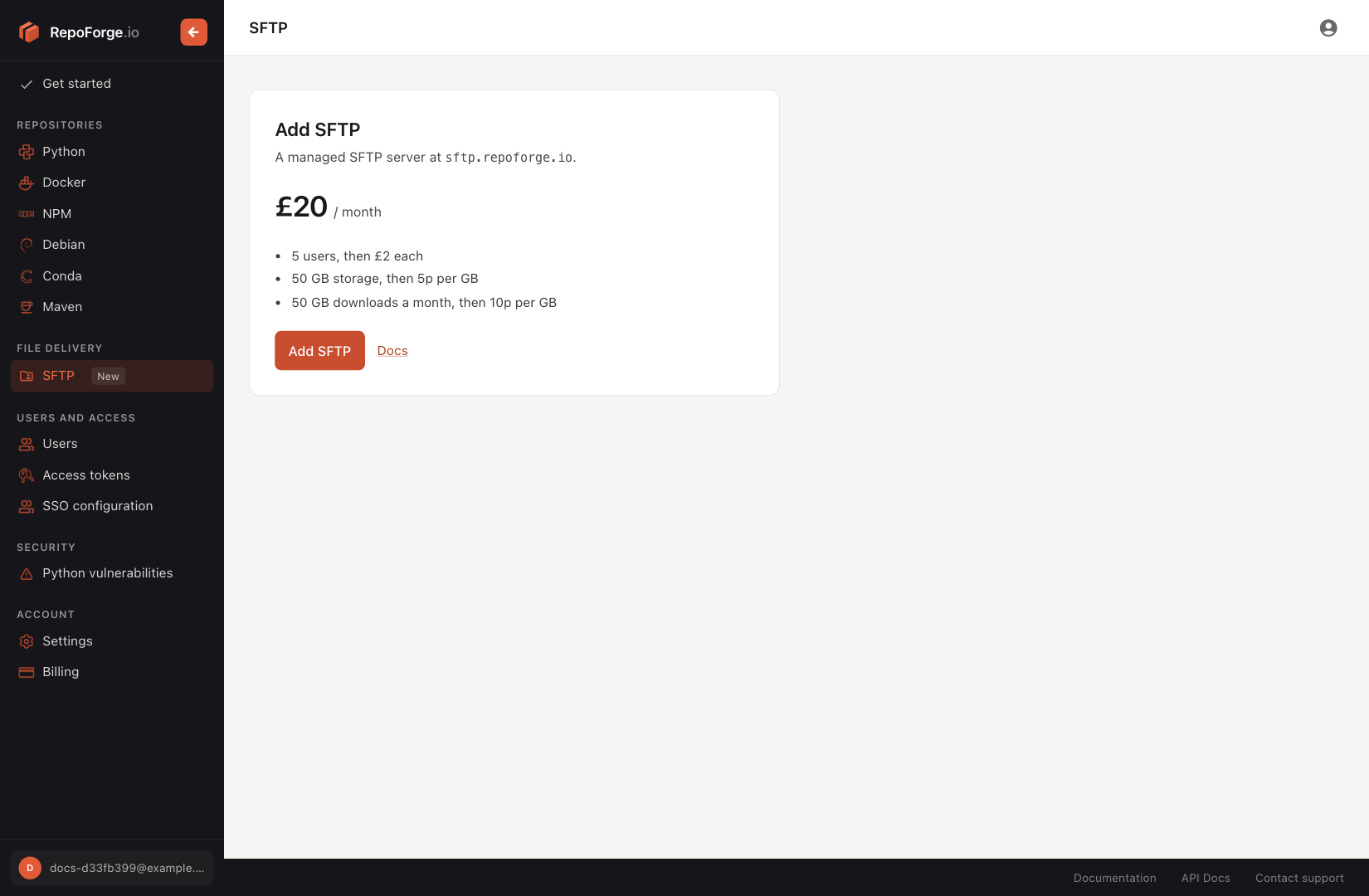
- Click SFTP in the dashboard sidebar.
- Click Add SFTP. A summary shows what's due today and what you'll pay each month after that.
- Click Pay … and add SFTP to charge the card on your account, or Continue to payment to add a card through Stripe if you don't have one.
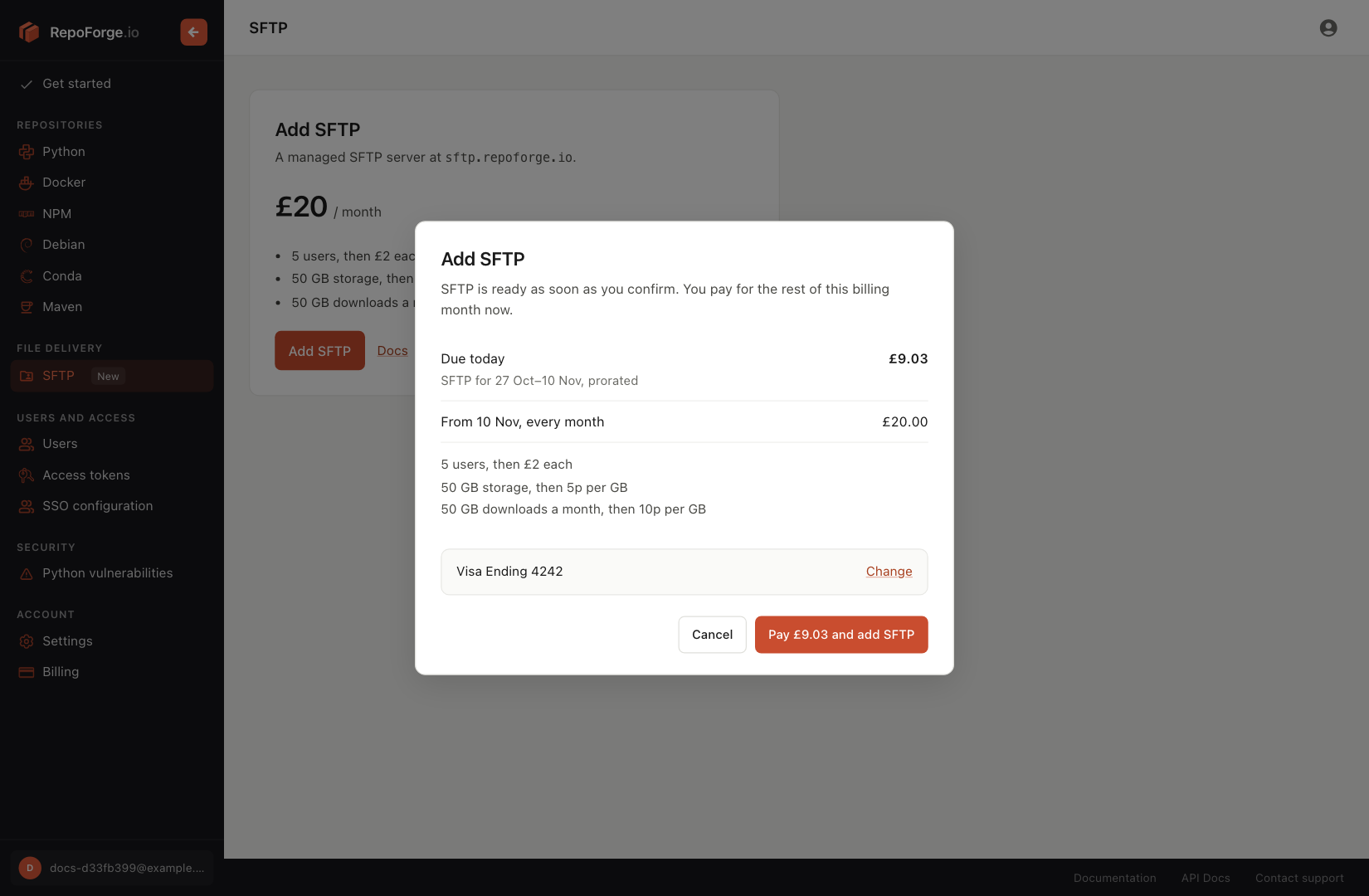
SFTP is ready as soon as you confirm. If you're on a paid plan, SFTP is billed on the same day as your plan, so the first payment covers the rest of the current billing month, prorated. There's no free trial for SFTP.
If you only want SFTP, sign up for RepoForge SFTP on its own and pay during sign up. You'll get the same dashboard without the package registry.
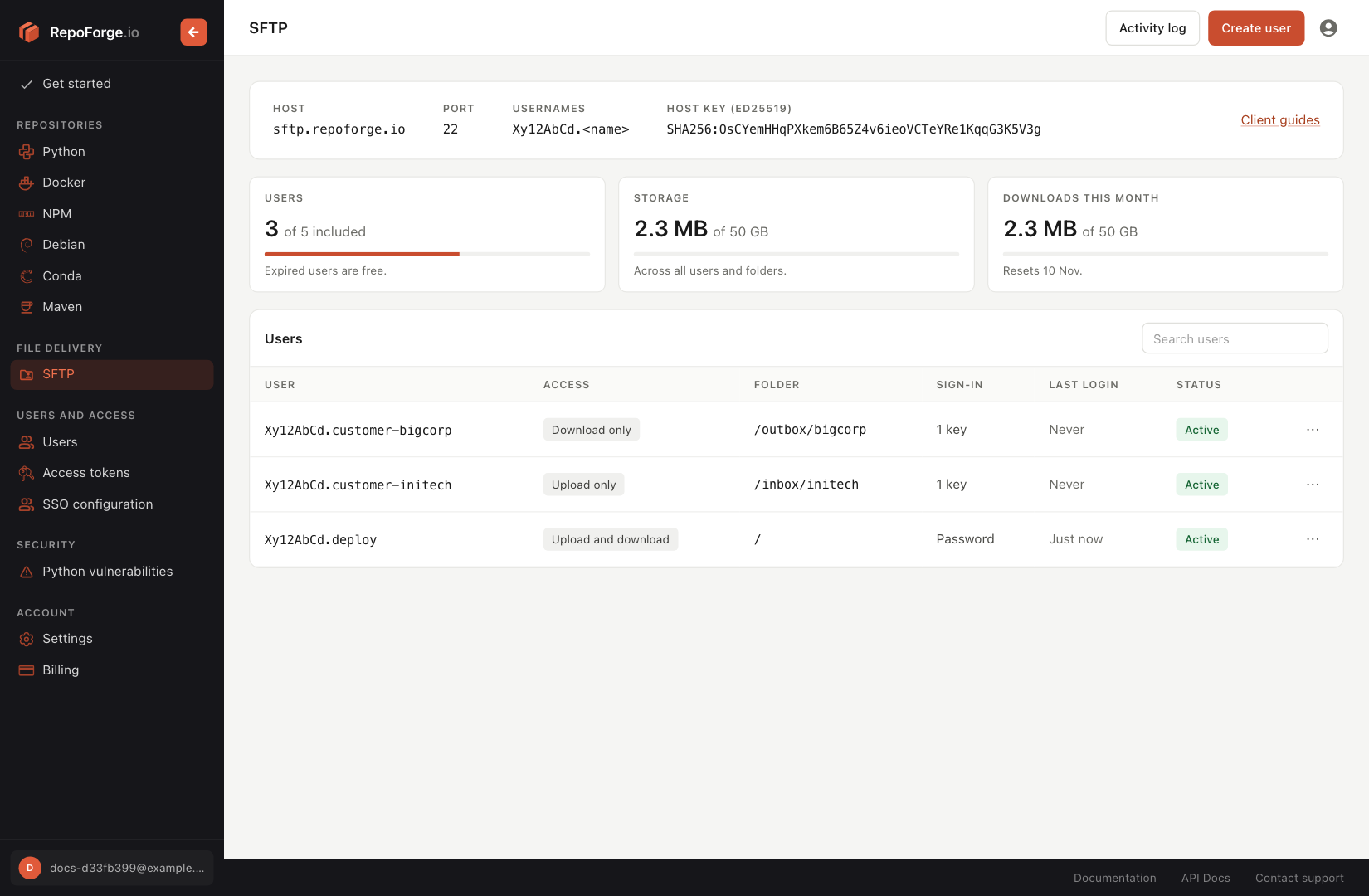
Once SFTP is on, the SFTP page shows the connection details (host, port, your username format and the host key fingerprint), your usage this billing period and your SFTP users.
Creating a user
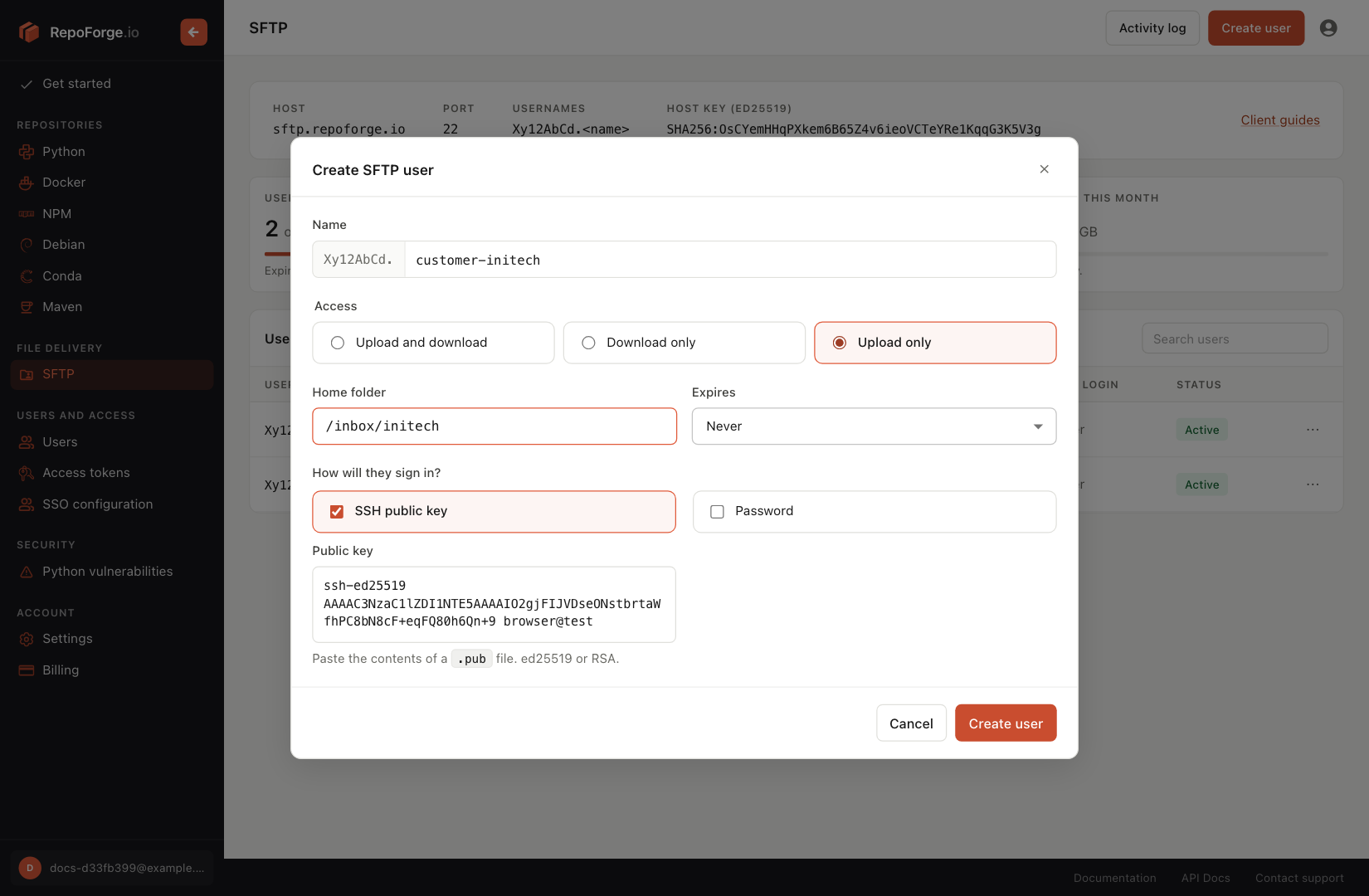
Click Create user on the SFTP page. (Straight after adding SFTP you'll be asked to create your first user instead.)
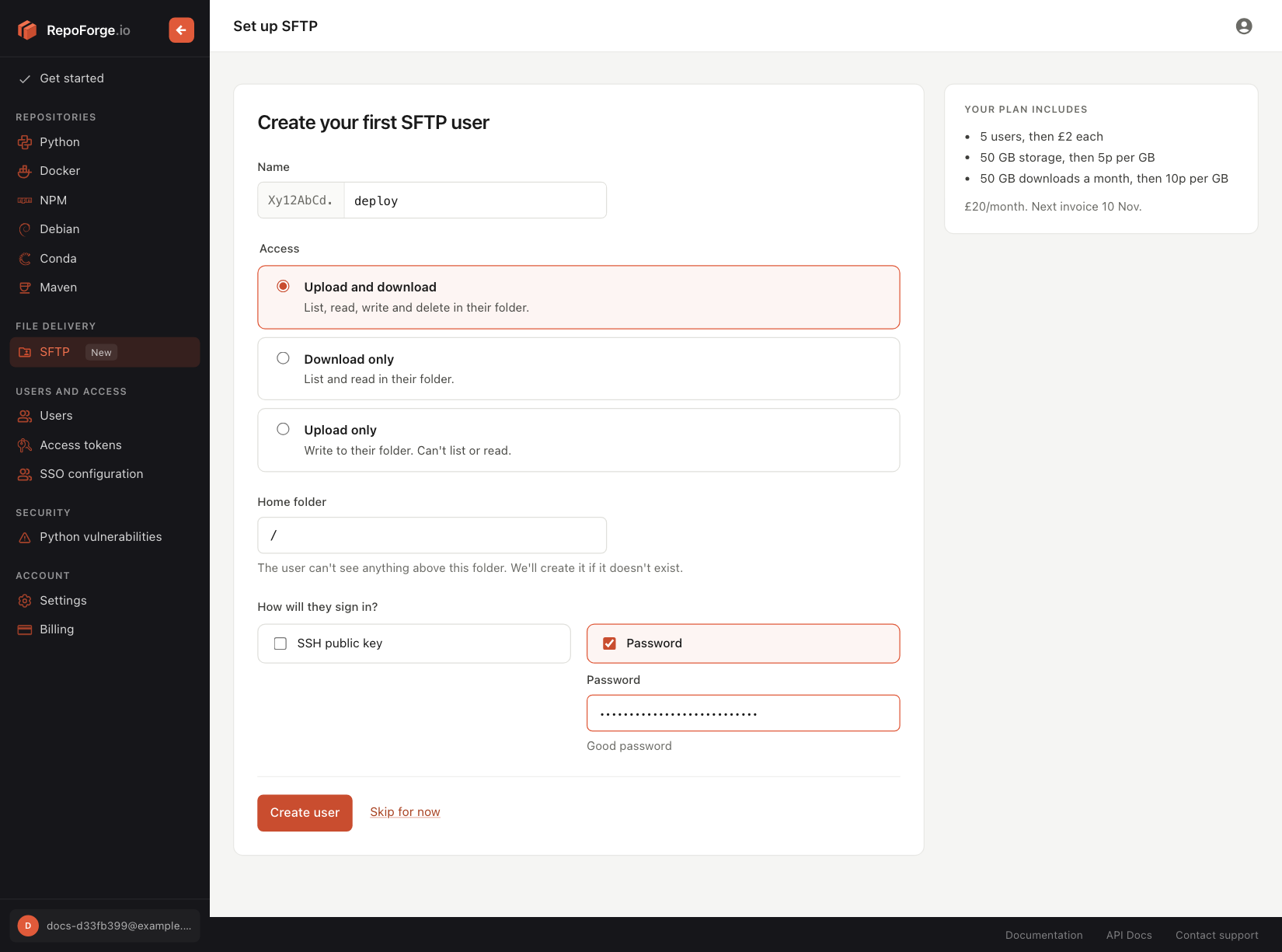
- Name: up to 32 lower case letters, numbers,
-and_, such asdeployorcustomer-bigcorp. The username they log in with is your account ID, a dot and this name:Xy12AbCd.deploy. The name can't be changed later. - Access: what the user can do in their home folder.
- Upload and download: list, read, write and delete.
- Download only: list and read.
- Upload only: write. They can't list the folder or read files back, which suits customers sending you files that shouldn't see what anyone else has sent.
- Home folder: the folder the user is confined to, such as
/for everything, or/inboxor/customers/bigcorp. The user can't see anything above it. It's created if it doesn't exist. - How will they sign in?: an SSH public key, a password, or both. See below.
- Expires: Never, In 30 days or On a date…. After that date the user can no longer log in and stops counting towards your bill.
Your first 5 users are included. When creating a user takes you past that, the button shows the extra monthly cost, for example Create user for £2/month.
See Users, permissions and keys for the full permission matrix, and for changing or deleting users.
Choosing how they sign in
Adding a key
Keys are the better choice, particularly for scripts and CI jobs. Paste the contents of the user's public key file (the .pub file, never the private key) into SSH public key. It must be an ed25519 or RSA key in OpenSSH format, such as:
ssh-ed25519 AAAAC3NzaC1lZDI1NTE5AAAAI... deploy@build-serverIf the user doesn't have a key yet, they can create one with:
ssh-keygen -t ed25519 -f ~/.ssh/repoforge_sftpand send you ~/.ssh/repoforge_sftp.pub. You can add more keys to a user later, for example one per machine.
Generating a password
Choose Password and either type one (at least 12 characters) or leave it blank to have one generated. A generated password is shown once, straight after you save. Copy it then; it can't be shown again, but you can set a new one at any time.
If you give a user both a key and a password, they need both to log in: their key first, then their password.
Sending someone their login
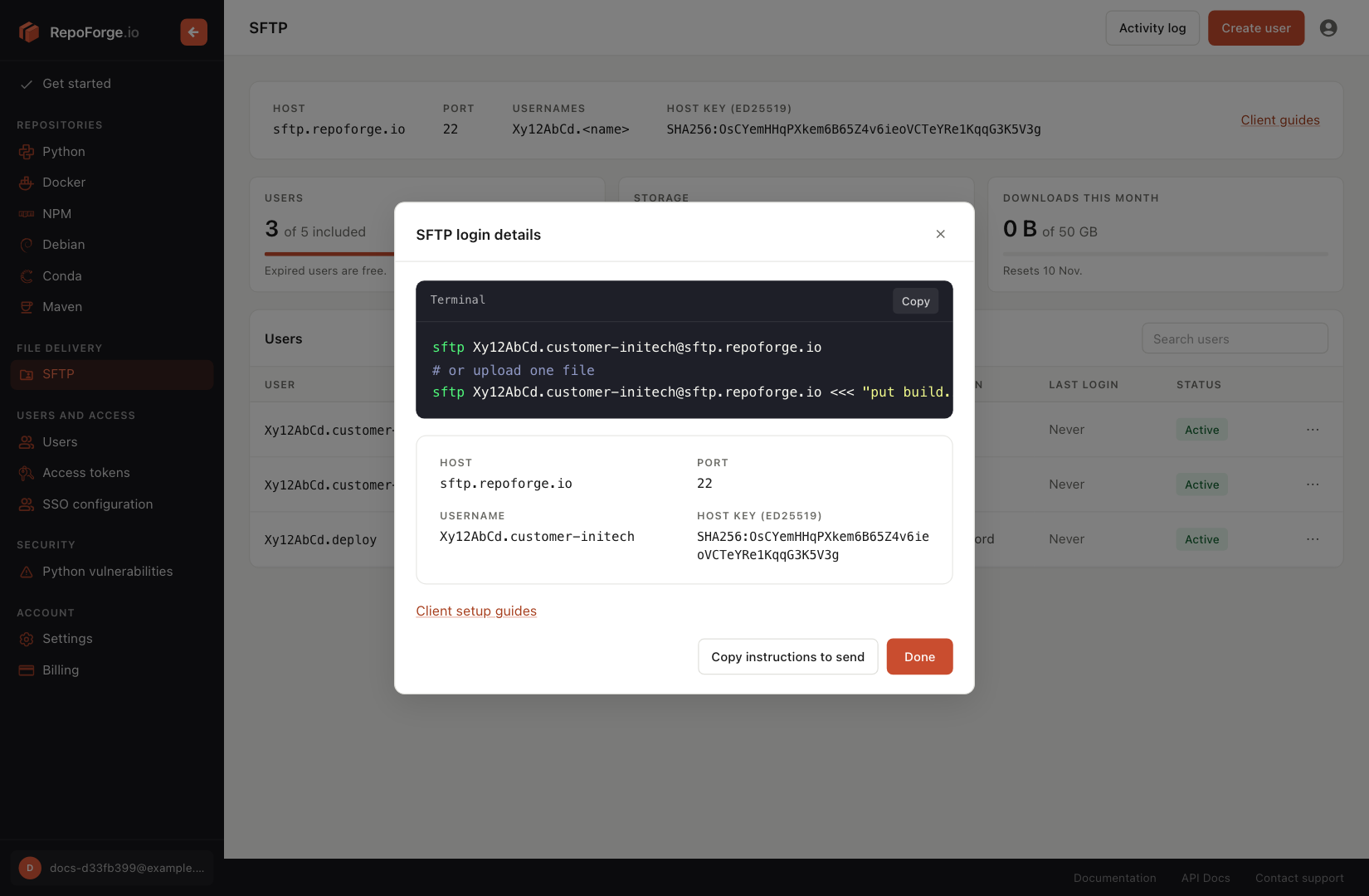
After you create a user, the SFTP login details show their username, the host key fingerprint, a generated password if there is one, and the command to connect. Click Copy instructions to send to copy them as plain text you can paste into an email. The instructions link to Connect with a desktop client, which explains the rest.
Straight after adding SFTP, your first user's details are shown on the setup page instead:
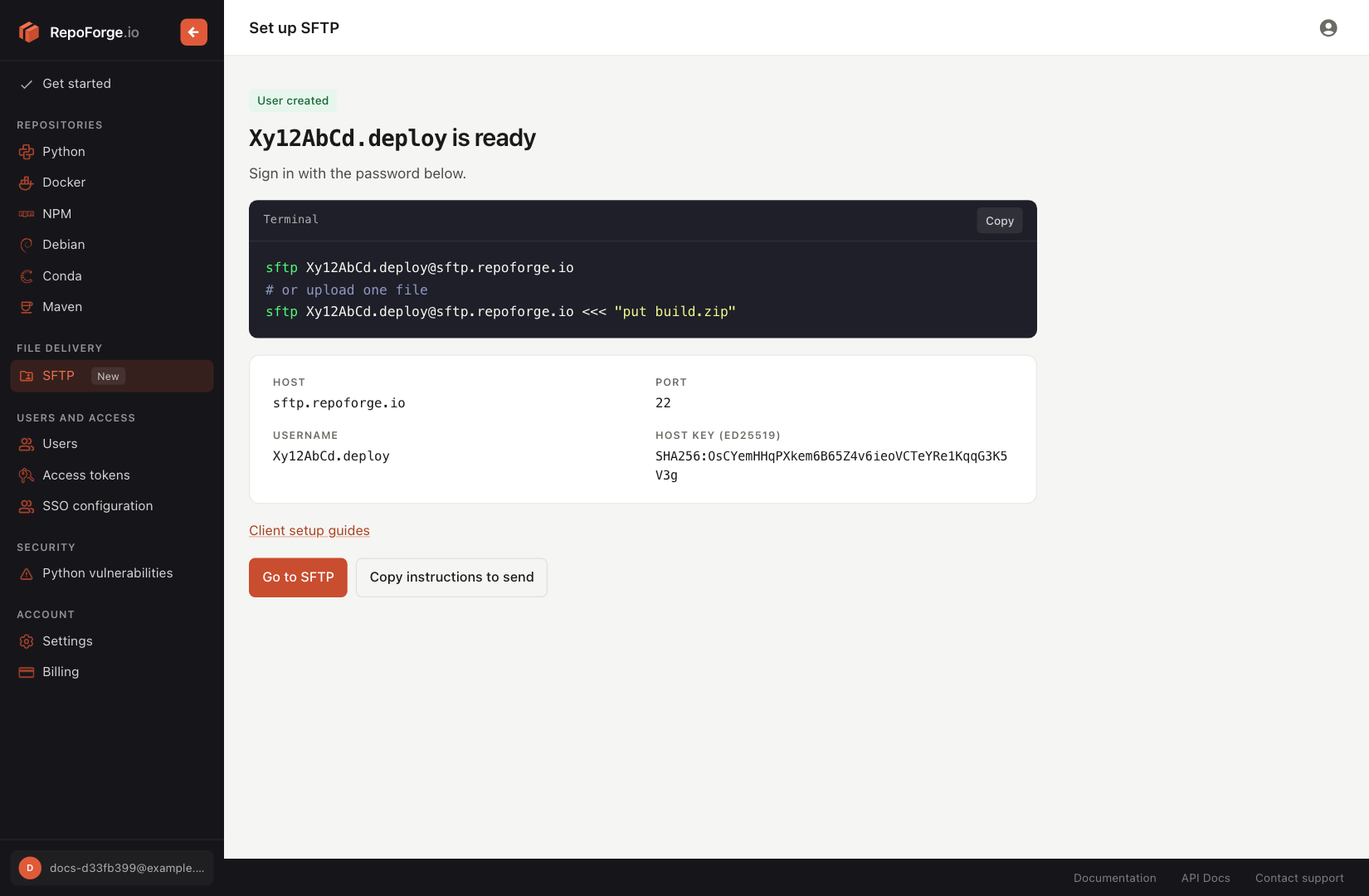
The copied instructions never include the password, so you can send that separately, for example over a different channel. You can get the same instructions later from the ⋯ menu next to a user, under Connection instructions.