Appearance
Two-Factor Authentication (2FA)
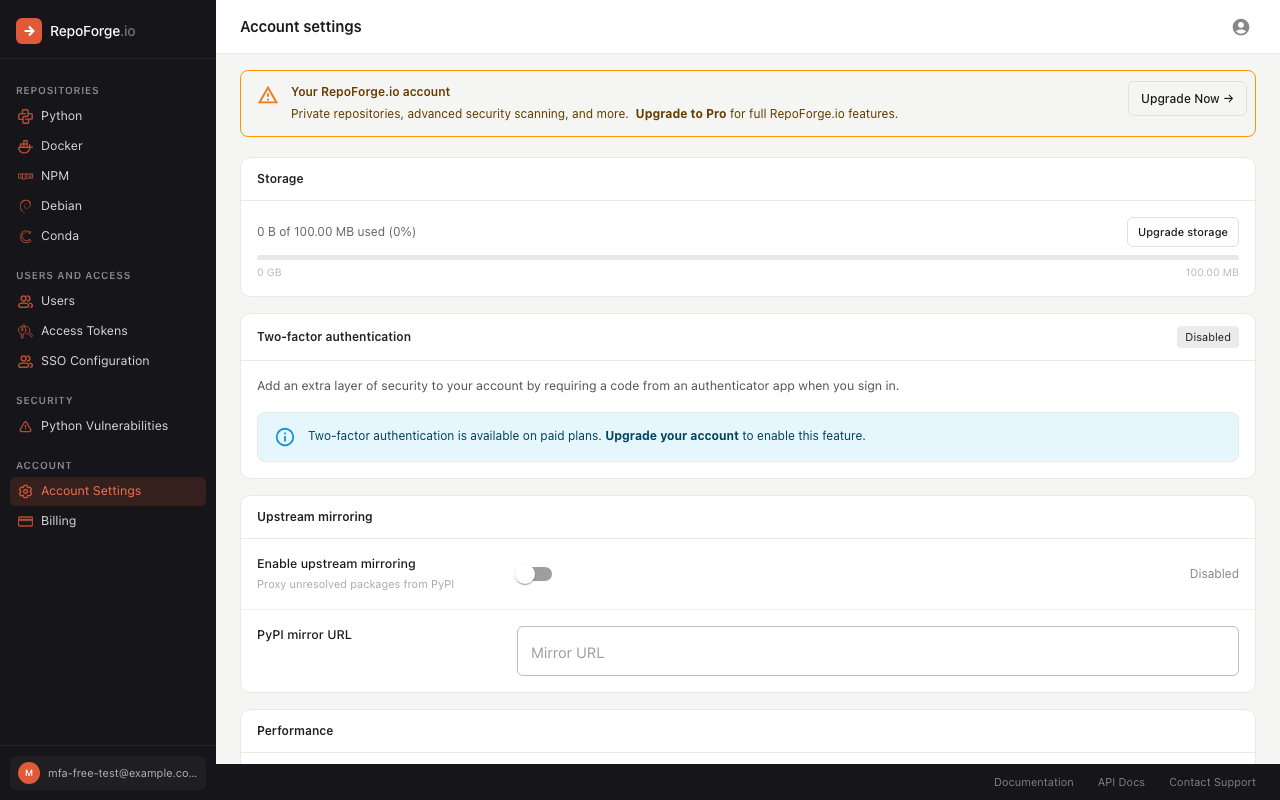
Two-factor authentication is available on paid plans and during a free trial. If you are on a free open-source account you will need to upgrade (or start a trial) before you can enable this feature.
Two-factor authentication (2FA) adds an extra layer of security to your RepoForge.io account. Once enabled, signing in requires both your password and a time-based code generated by an authenticator app on your phone. Even if your password is compromised, an attacker cannot access your account without also having your device.
Requirements
- A paid RepoForge.io subscription (Basic, Standard, or Advanced) or an active free trial
- An authenticator app such as Google Authenticator, Authy, or 1Password
Setting up two-factor authentication
1. Go to Account Settings
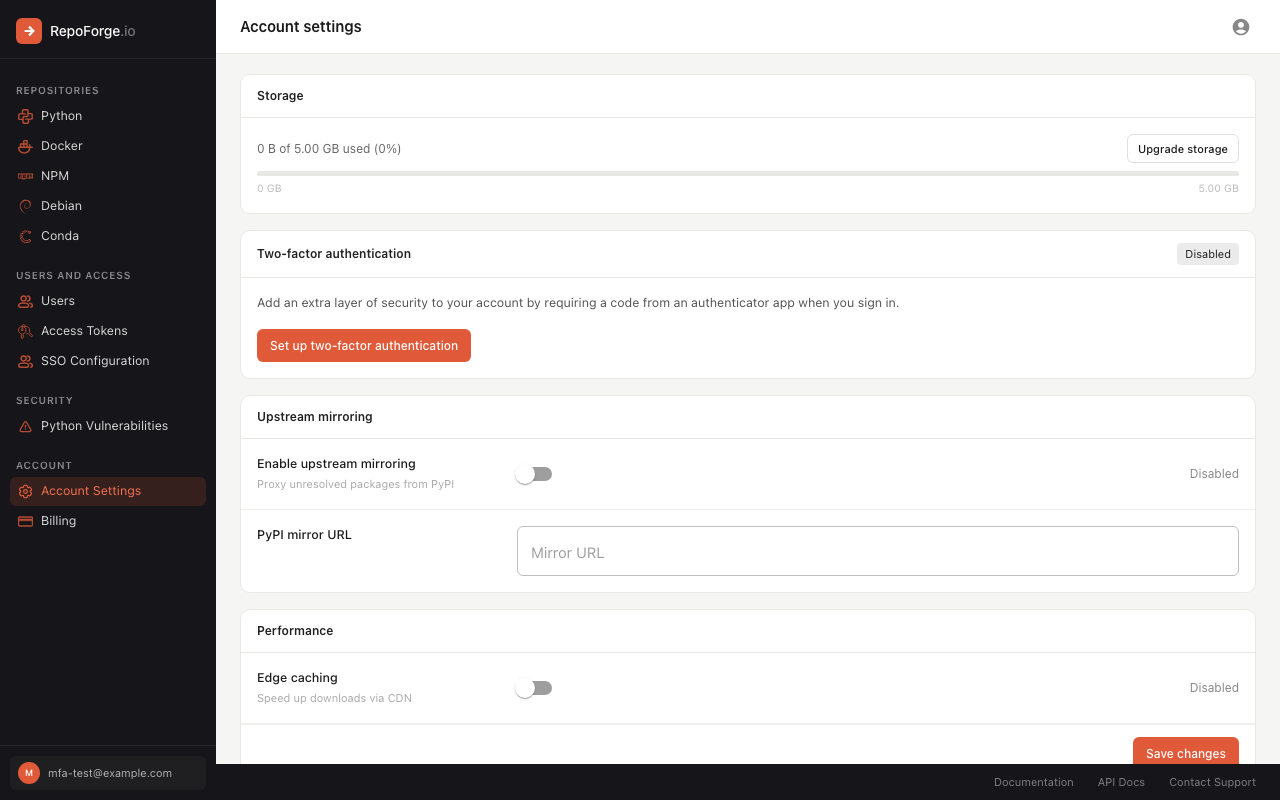
Navigate to Account → Account Settings in the left-hand sidebar.
If you are on a free plan you will see an info message explaining that 2FA requires a paid subscription:
Once you have an active subscription the Set up two-factor authentication button will appear.
2. Scan the QR code
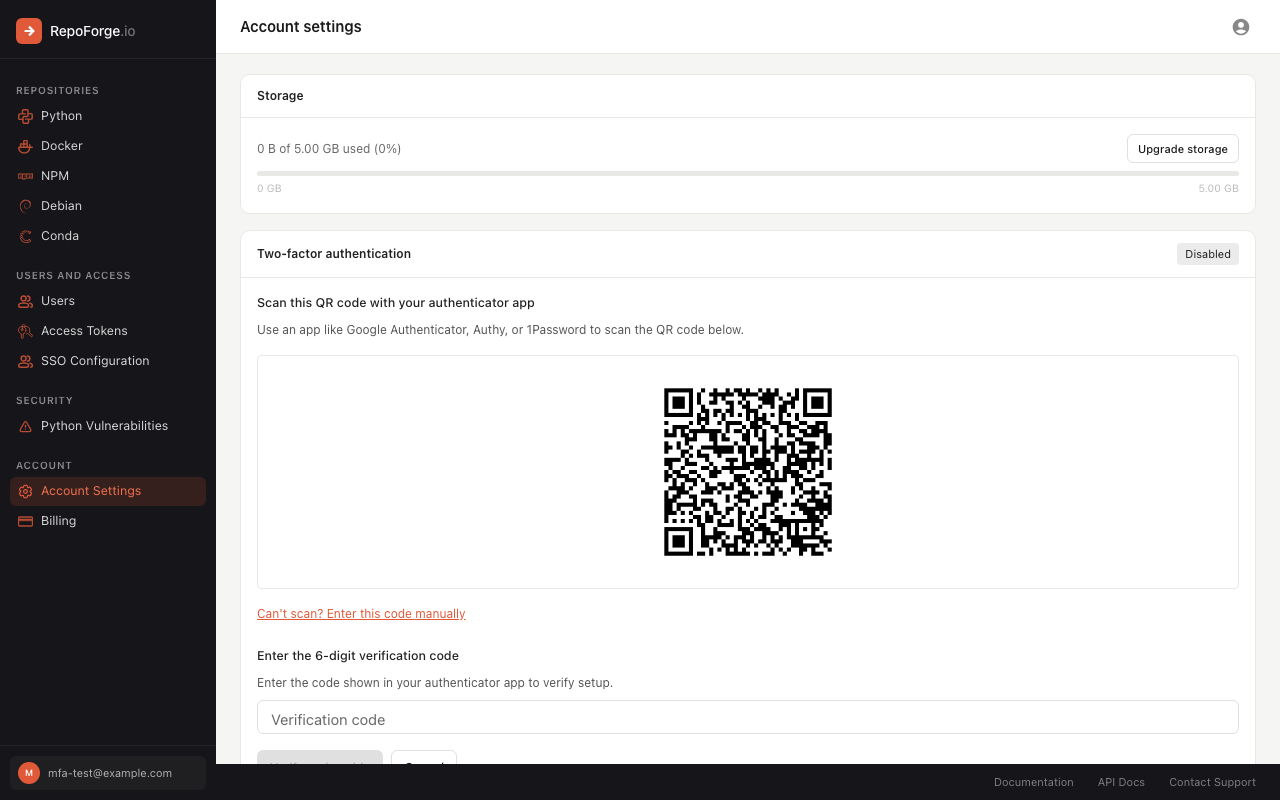
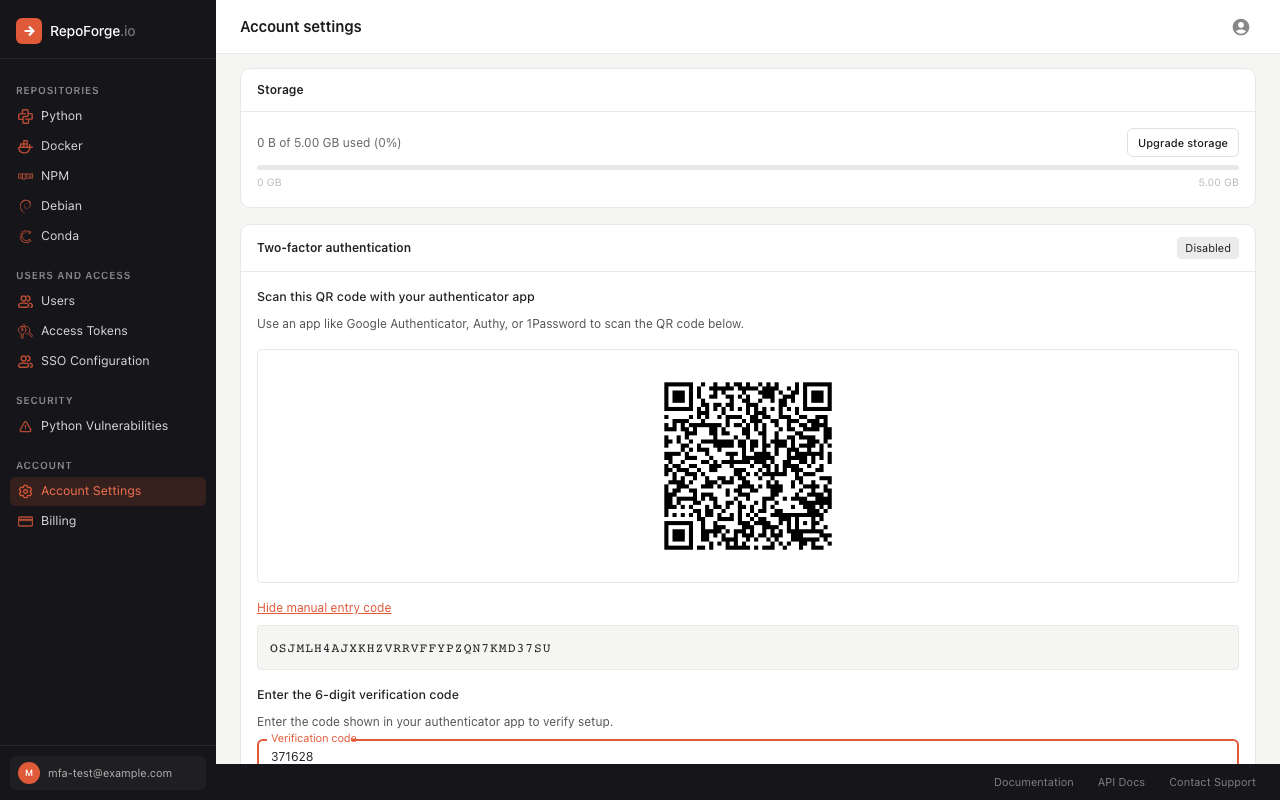
Click Set up two-factor authentication. A QR code is displayed — open your authenticator app, add a new account, and scan the code.
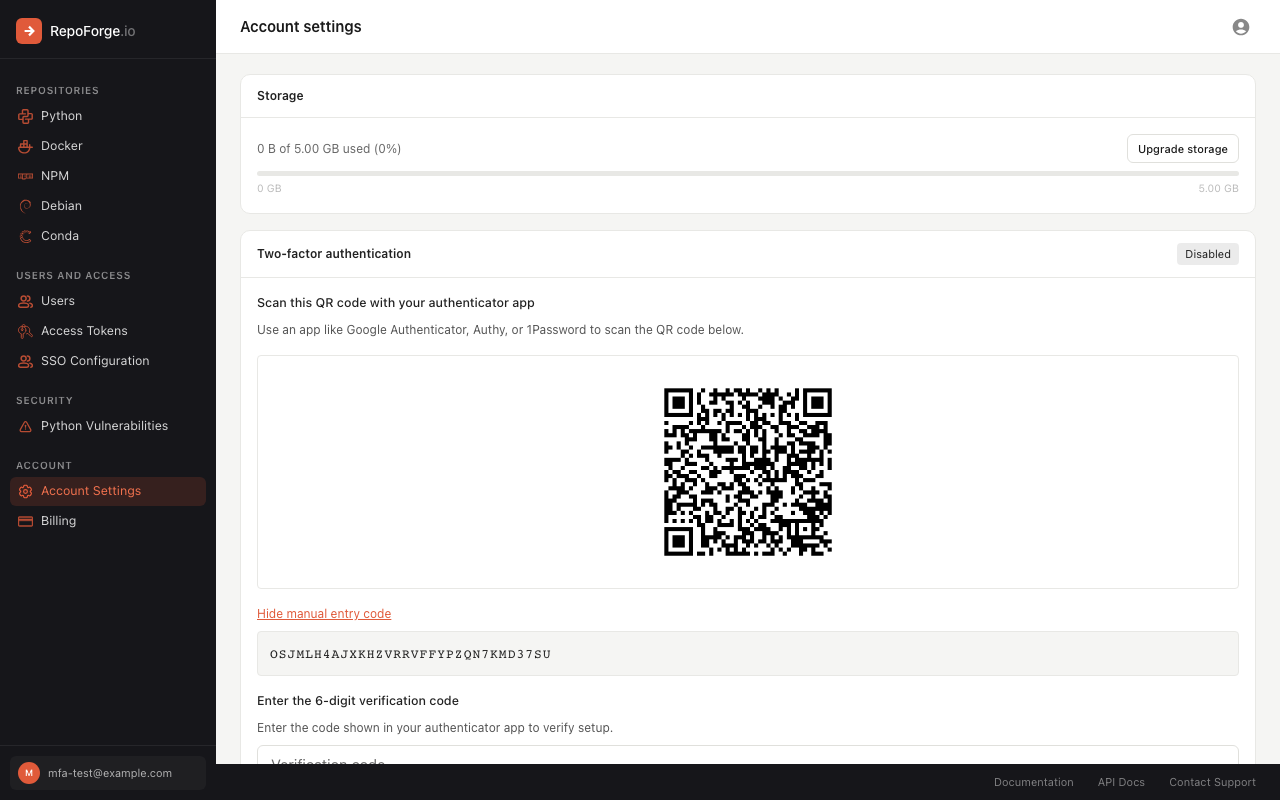
Can't scan the QR code? Click Can't scan? Enter this code manually to reveal the plain-text secret that you can type directly into your authenticator app.
3. Enter the verification code
Your authenticator app will display a 6-digit code that changes every 30 seconds. Type it into the Verification code field and click Verify and enable.
4. Save your recovery codes
After successful verification, RepoForge.io generates 8 one-time recovery codes.
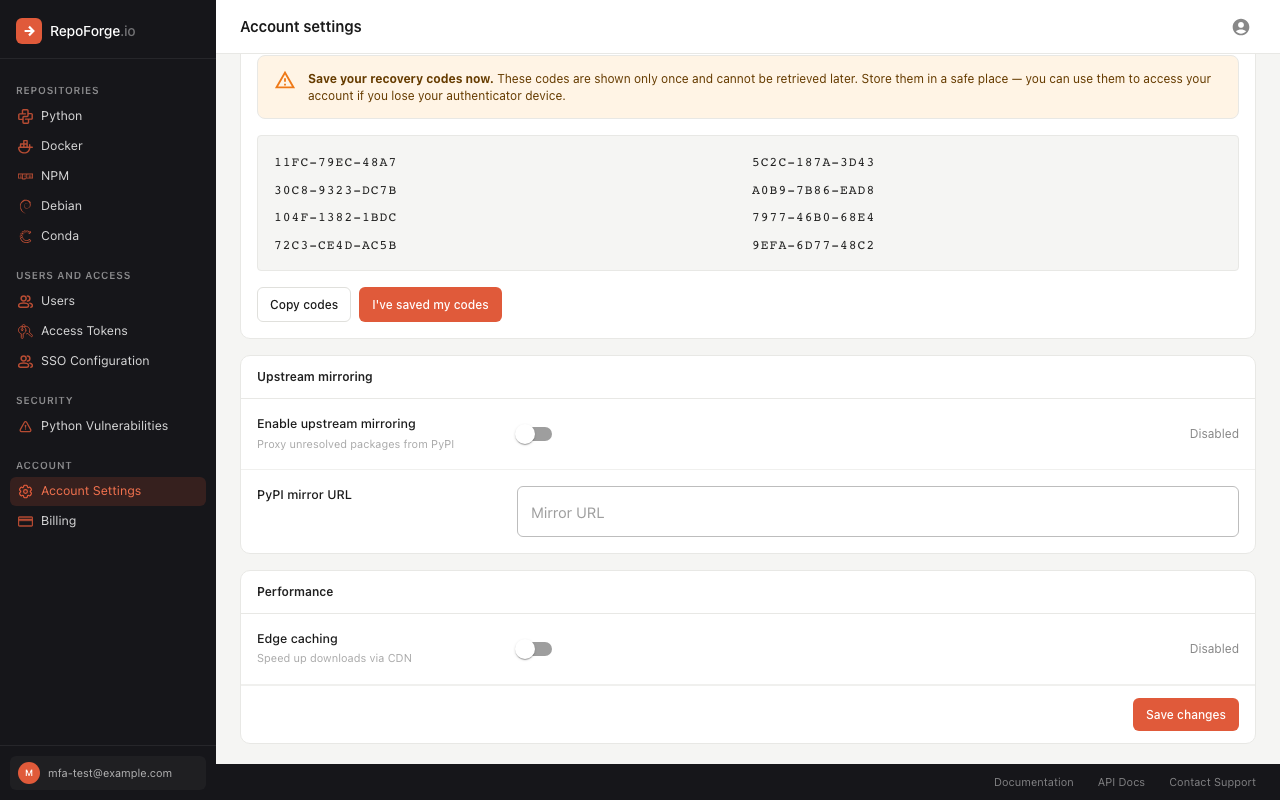
Save these codes now
Recovery codes are shown only once and cannot be retrieved later. Copy them using the Copy codes button and store them somewhere safe — a password manager, printed sheet kept offline, or encrypted storage. Each code can only be used once.
Click I've saved my codes to dismiss the panel. Two-factor authentication is now active on your account.
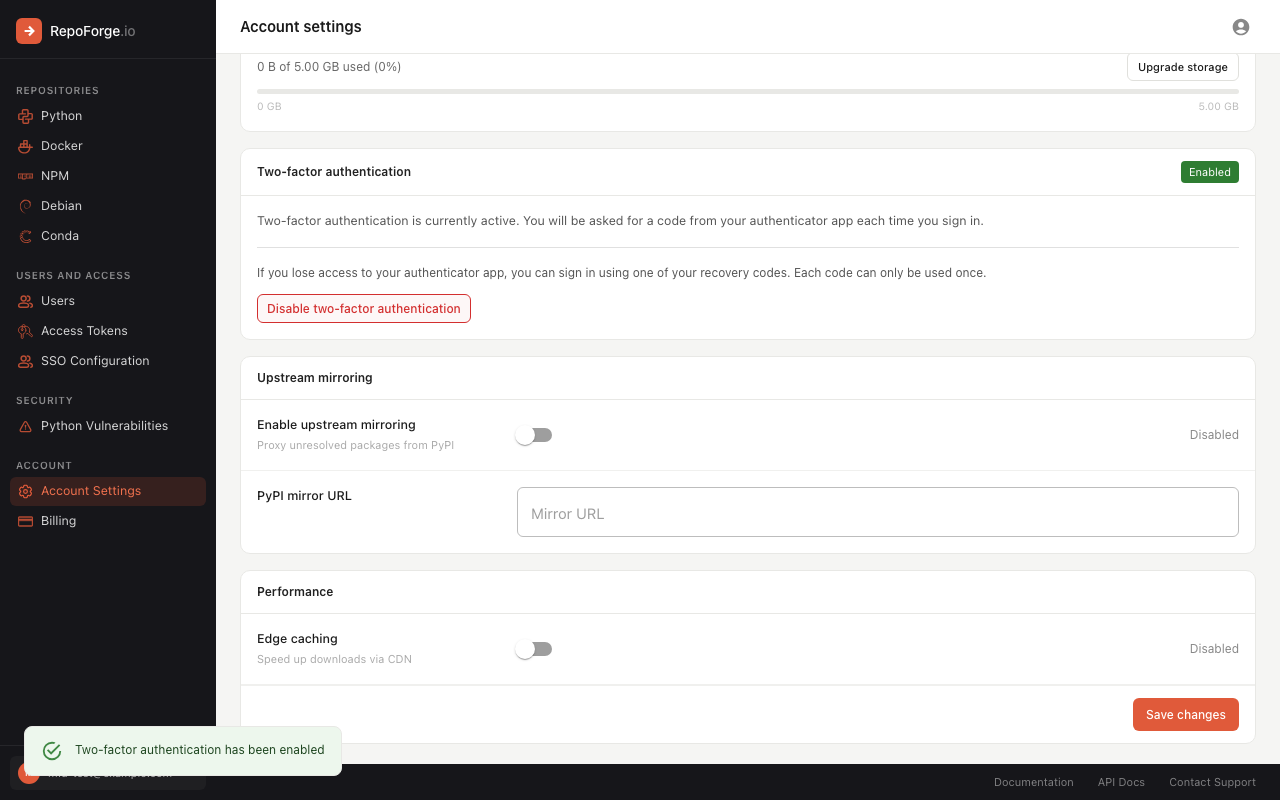
Signing in with two-factor authentication
When 2FA is enabled, the login flow has an additional step.
- Enter your email address and password as normal.
- RepoForge.io detects that 2FA is active and prompts for your authenticator code.
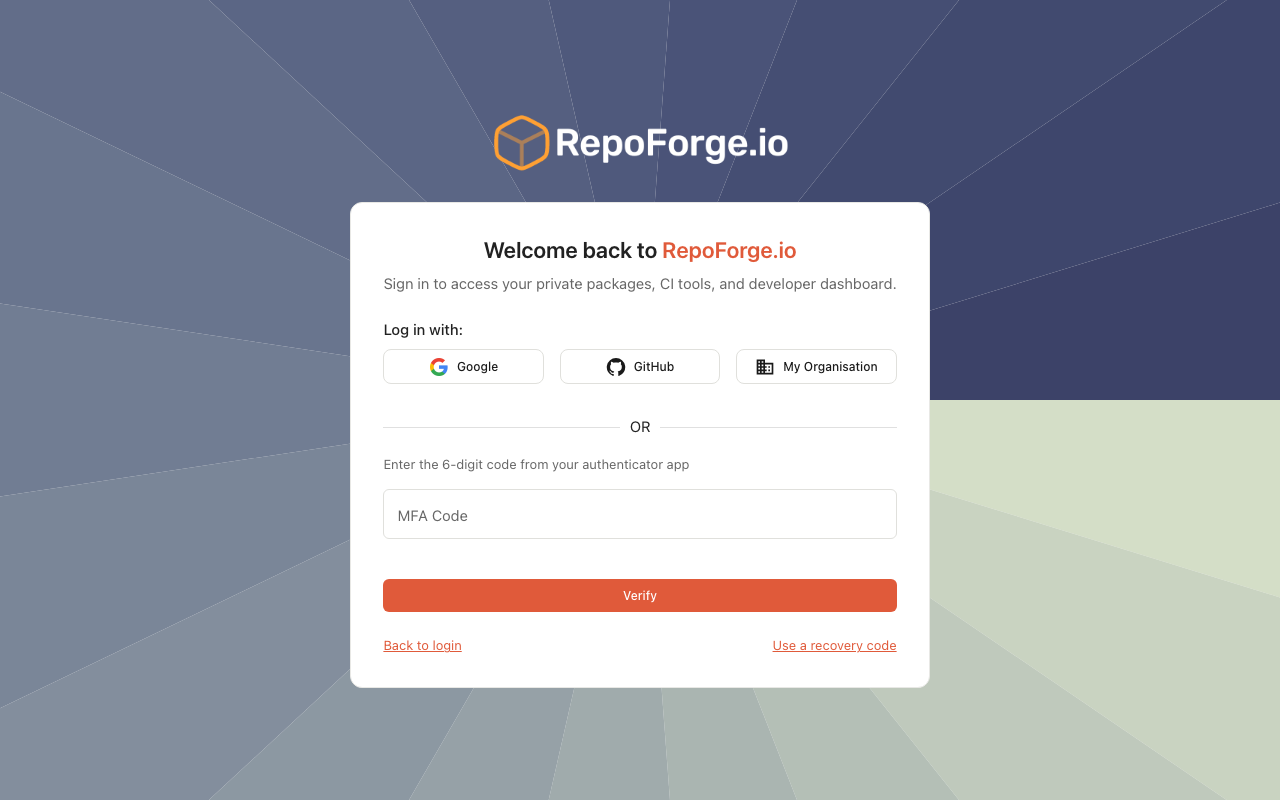
- Open your authenticator app, copy the current 6-digit code, and click Verify.
Using a recovery code to sign in
If you have lost access to your authenticator device, you can sign in using one of your saved recovery codes.
- On the MFA prompt screen, click Use a recovery code (bottom-right).
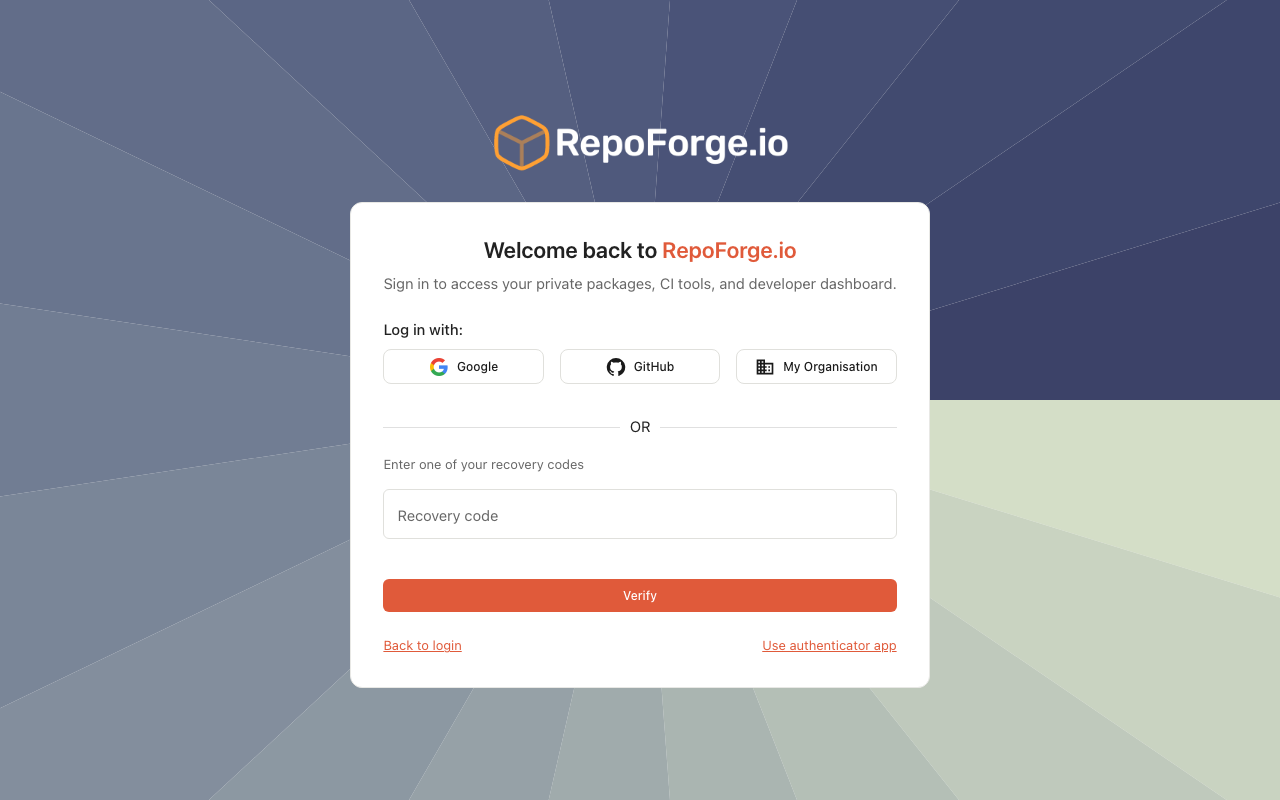
- Enter a recovery code in the format
XXXX-XXXX-XXXXand click Verify. - You will be signed in. The code you used is immediately invalidated — each code can only be used once.
- Once signed in, go to Account Settings and set up a new authenticator app, then generate fresh recovery codes to replace the ones you have used.
Running low on recovery codes?
Disable 2FA using a code from your authenticator app or a remaining recovery code, then re-enable it to generate a fresh set of 8 codes.
Disabling two-factor authentication
- Go to Account → Account Settings.
- In the Two-factor authentication section, click Disable two-factor authentication.
- Enter the current 6-digit code from your authenticator app to confirm.
- 2FA is immediately disabled and all recovery codes are invalidated.